A screen recorder with captions made on your machine
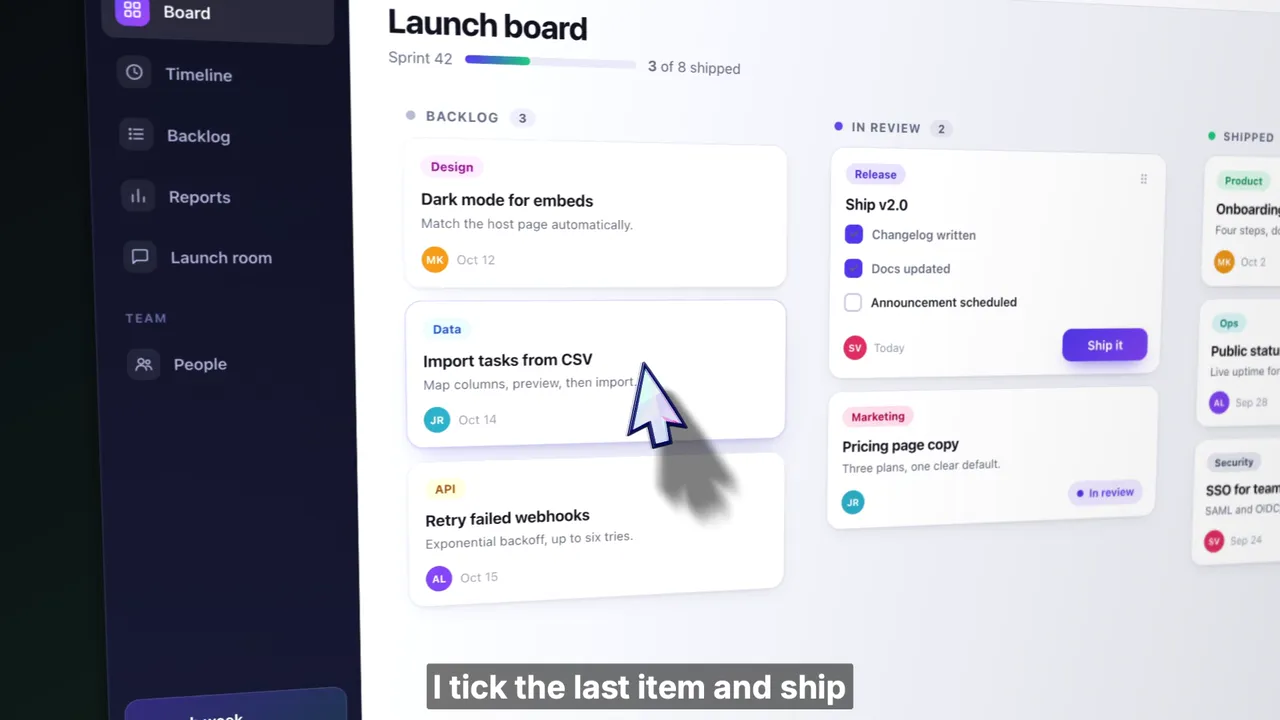
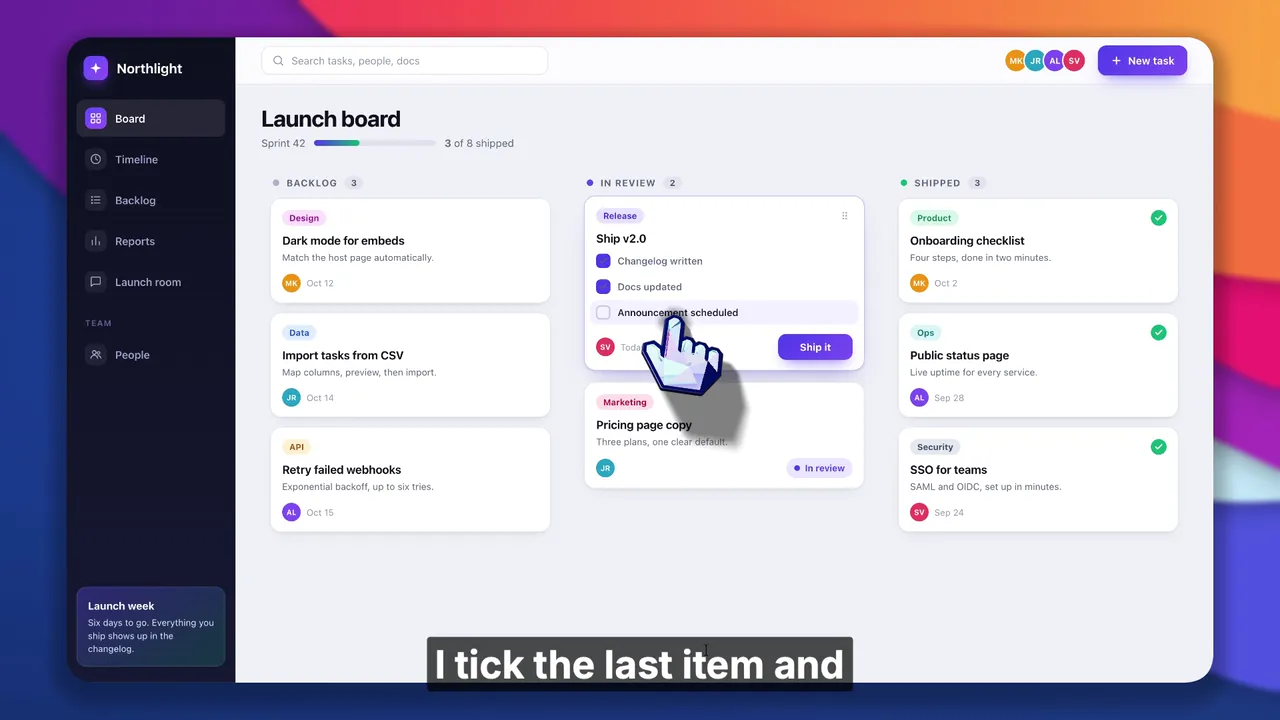
OpenScreen is a free, MIT-licensed screen recorder with captions for Windows, macOS and Linux. It transcribes your recording on your own computer with Whisper, after a one-time model download of about 264 MB, and burns styled captions into the exported video. If you need separate SRT or VTT subtitle files for a course platform or an accessibility requirement, Cap or Camtasia is the better choice.
This page is published by the OpenScreen project. The Cap, Camtasia and Screen Studio details come from cap.so, techsmith.com and screen.studio and were checked in September 2026. The sources are listed at the end.
At a glance
| Engine | whisper.cpp, running on your computer |
| Model | One Whisper Small model of about 264 MB |
| Model download | Once, from huggingface.co, checked by SHA-256. Not included in the installer |
| Hardware | Metal on Apple Silicon. CPU on Intel Macs. Vulkan with a CPU fallback on Windows and Linux |
| Languages | Detected automatically, or set by hand to one of 100 languages |
| Styling | Font, size, bold, text color, background, position, and 1 to 12 words per line |
| Output | Burned into the exported video |
| Transcript editing | Delete words to cut them from the video. Silences are marked and can be cut too |
| Translation | 15 languages, through an AI provider you connect with your own key |
| Command line | The captions command adds captions to a project |
| Price | Free, including commercial use. No account |
How captions work in OpenScreen
Transcription on your computer
Click Transcribe now in the Transcript facet of the editor, or Regenerate on a media card in the Media stage. The first run fetches the model from huggingface.co: one Whisper Small model of about 264 MB, downloaded once. OpenScreen checks the file against a pinned SHA-256 digest before it uses it. After that, transcription needs no network connection.
The work runs on the GPU where OpenScreen supports one: Metal on Apple Silicon and Vulkan on Windows and Linux. Windows and Linux fall back to the CPU when Vulkan is not available. Intel Macs use the CPU.
Whisper detects the spoken language on its own. If it guesses wrong, pick one of 100 languages under Regenerate as in the Media stage and run it again. See Media library.
Captions drawn from the transcript
Captions are a live view of the transcript, not a copy of it. Cut words from the transcript, change the style or move a clip, and the captions follow on the next frame, with no regeneration step.
- Text. Font, size, bold and color.
- Background. A plate behind the text, with its own color and opacity, or none.
- Position. Top or bottom, left, center or right, with a distance from the edge.
- Line length. A minimum and maximum of 1 to 12 words per line.
The preview and the export use the same layout, so the captions you see are the ones burned into the video. Show captions turns them off for an export without them. Full reference in Captions & transcript.
Cutting by deleting words
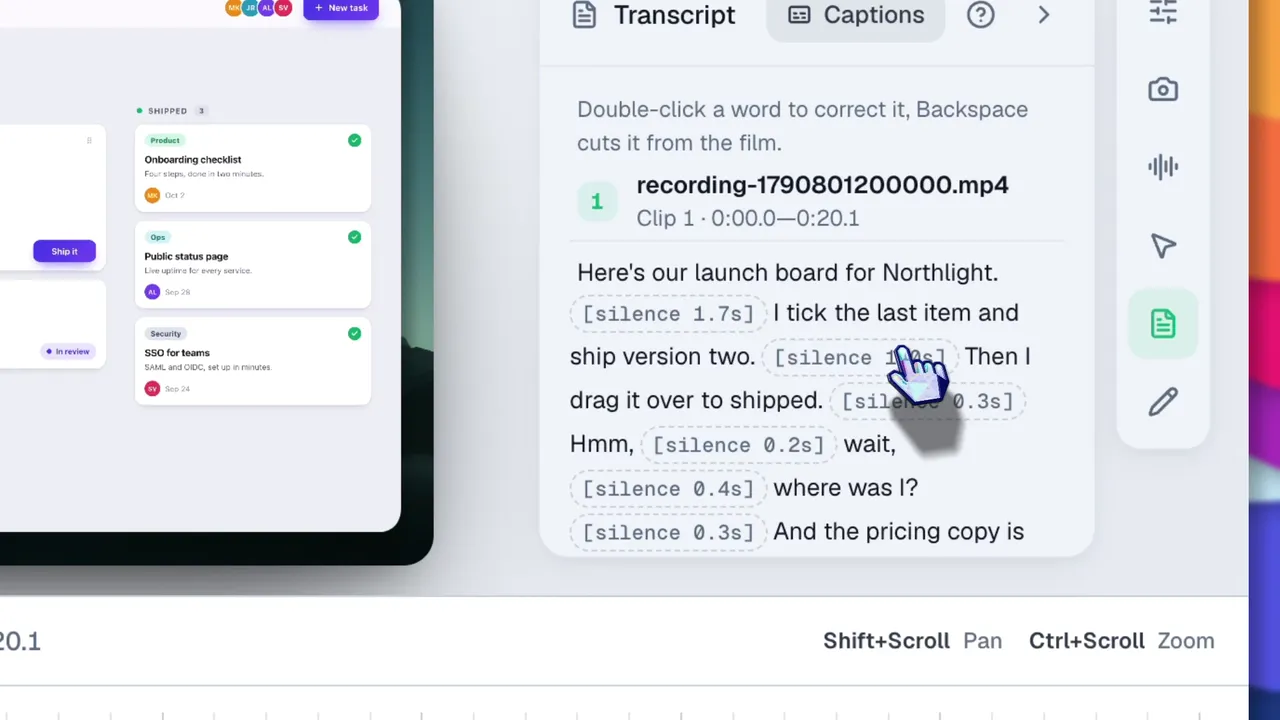
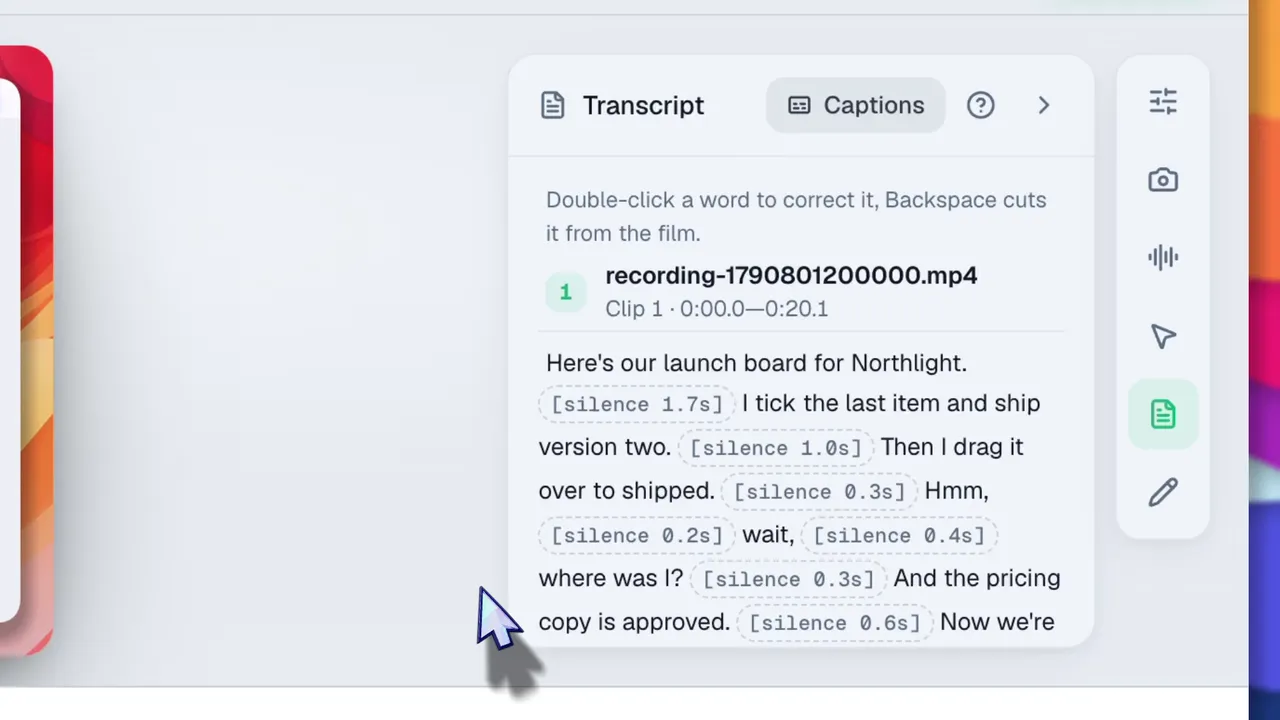
The Transcript panel shows the words of every clip on the timeline. Select a word or a passage and press Delete: that span is cut from playback and export, like a trim on the timeline. Cut words show struck through, and you can restore them. Silences are marked in the text and can be cut or restored the same way.
Whisper reports word times a little late. OpenScreen pulls each word boundary back onto the audio, so a cut starts where the spoken word starts rather than a syllable later. See Transcript editing.
Translation with your own key
Translation covers 15 languages: English, French, Spanish, German, Italian, Portuguese, Dutch, Polish, Turkish, Russian, Arabic, Hindi, Japanese, Korean and Chinese. It goes through the AI provider you connect for chat editing, with your own key. Until you connect a provider, it sends nothing. The translation is stored beside the transcript, so the original words and timings stay as they were, and you can switch back at any time. See Translation and AI editing.
From the command line
The captions command of the CLI transcribes a project with the same local Whisper model and adds captions to it. --min-words and --max-words set the words per caption, and export burns them into the video.
What goes over the network
The audio stays on your computer. Apart from one-time model downloads, only translation reaches the network: it sends the transcript text to the provider you chose. For the app as a whole: OpenScreen has no account and no server of its own. Its only report is an anonymous daily count of active installs, which you can turn off. The FAQ lists the few connections it still makes.
Other recorders with local captions
On-device Whisper is not unique to OpenScreen. As of September 2026:
- Screen Studio transcribes on the Mac with Whisper Base, Small or Medium, or with Apple Speech Recognition on macOS 26 or later. It can export the transcript as a separate file.
- Cap transcribes locally in its Studio Mode, in beta, with a choice of model. It can burn captions into the video or save them as SRT or WebVTT files. Cap lists caption translation among its Cap Pro features.
- Camtasia transcribes on the device with Whisper. It lists captioning, dynamic and closed, in its Essentials plan, and text-based video editing in its paid plans. Version 2026.1.0 added basic VTT caption import and export.
Where OpenScreen differs
- Free, including commercial use. No plan and no account. Cap's pricing page says its free version is for personal use only. Screen Studio needs an active plan to export video files. Camtasia's desktop editor watermarks exports until you upgrade to a paid Essentials, Create or Pro plan or a business license. All three as of September 2026.
- Windows, macOS and Linux. OpenScreen runs on Windows 10 (1903 or later) and 11, x64 and ARM64. macOS 13 or later, Apple Silicon and Intel. Linux, x64. As of September 2026, Screen Studio runs only on macOS, Camtasia's desktop editor runs on Windows and macOS, and Cap offers apps for all three. See Linux, Windows and macOS.
- Transcript editing without a subscription. Cutting by deleting words is part of the free app. Camtasia lists text-based editing in its paid plans (as of September 2026). Cap added cutting by transcript to its web editor in July 2026. Its desktop Studio Mode guide covers correcting caption text and timing, and does not describe cutting video from the transcript.
- Translation through a provider you pick. Any provider OpenScreen supports, with your own key, and no plan to buy from OpenScreen. Translation itself is not unique: Cap Pro lists caption translation too (as of September 2026).
When OpenScreen is not the right tool
- You must deliver a caption file. If a course platform or an accessibility requirement asks for subtitles that viewers can turn off, you need a separate file. Cap saves SRT and WebVTT files, and Camtasia imports and exports VTT. OpenScreen burns captions into the video.
Getting started
- Download OpenScreen from the download page and follow Installation.
- Record with your microphone on, following the quick start.
- In the editor, open the Transcript facet and click Transcribe now. The first run downloads the model.
- Style the captions, cut from the Transcript panel if you need to, and export. See Export.
Also worth reading: automatic zooms, the Screen Studio alternative, OpenScreen vs Cap, the Camtasia alternative, and the FAQ. Or go back to the OpenScreen home page.
Sources
Cap, Camtasia and Screen Studio facts, checked September 2026:
- Screen Studio on-device models, Apple Speech Recognition and transcript file: screen.studio/guide/captions
- Screen Studio export requires an active plan: screen.studio/download
- Screen Studio runs on macOS only, from its FAQ: screen.studio
- Cap local captions, model choice, burned-in captions, SRT and WebVTT files: cap.so/docs/recording/studio-mode
- Cap Pro caption translation: cap.so/llms-full.txt
- Cap free version for personal use only, and apps for macOS, Windows and Linux: cap.so/pricing
- Camtasia transcription with Whisper: support.techsmith.com/hc/en-us/articles/203729278
- Camtasia transcription on the device: support.techsmith.com/hc/en-us/articles/26713588518413
- Camtasia captioning in Essentials, text-based editing on paid plans: support.techsmith.com/hc/en-us/articles/41688340554765
- Camtasia VTT caption import and export in 2026.1.0: support.techsmith.com/hc/en-us/articles/41261973472269
- Camtasia platforms and watermarked free exports: techsmith.com/camtasia
OpenScreen facts describe version 2.1.0 and link to its documentation above.
Cap, Camtasia and Screen Studio are trademarks of their respective owners. OpenScreen is an independent project and is not affiliated with or endorsed by any of them.