A free screen recorder with auto zoom
OpenScreen is a free, MIT-licensed screen recorder with auto zoom for Windows, macOS and Linux. After each take, it reads the clicks it recorded and zooms in on them, with no network call and no AI model. Screen Studio, Cap and Camtasia also zoom automatically; OpenScreen does it for free, on all three systems.
This page is published by the OpenScreen project. The Screen Studio, Cap and Camtasia details come from screen.studio, cap.so and techsmith.com and were checked in September 2026. The sources are listed at the end.
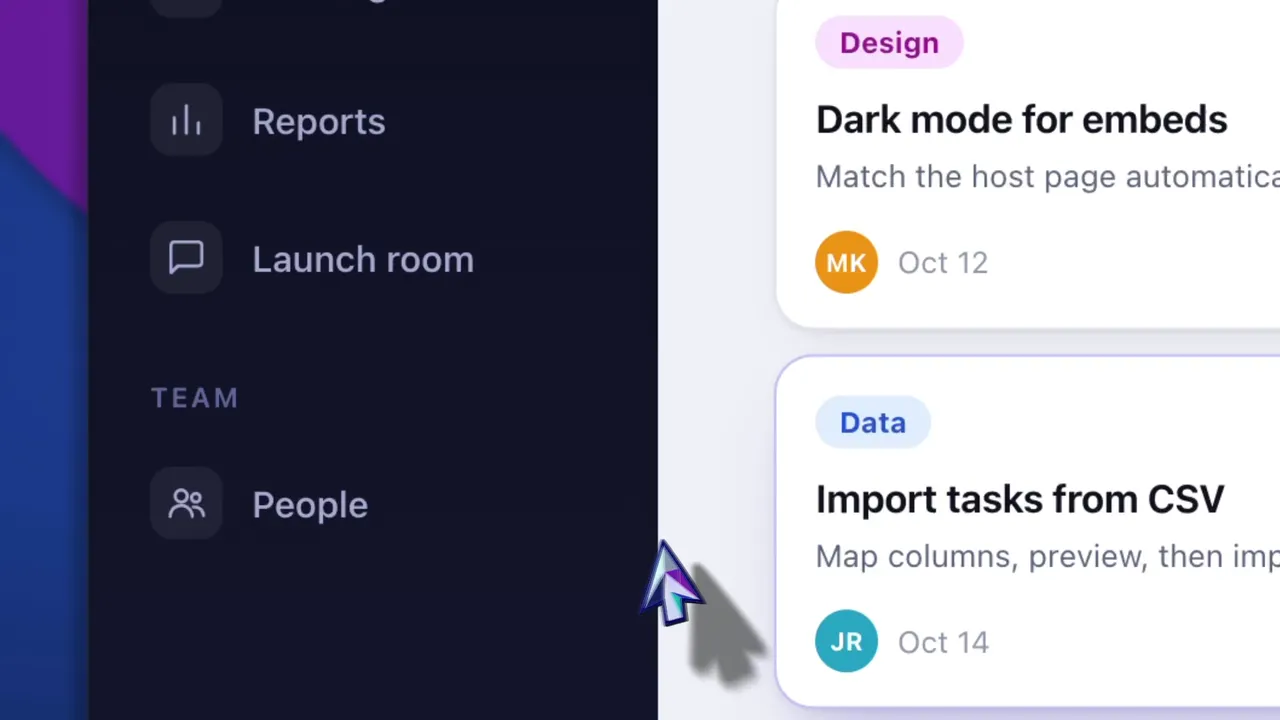
At a glance
| Where to find it | Auto-enhance → Automatic zooms, in the editor's timeline toolbar |
| What it reads | The clicks OpenScreen saves with a recording |
| Where zooms land | On your clicks. Clicks close together share one zoom |
| Each automatic zoom | 1.25×, 1.5× or 1.8×, the deepest that keeps its clicks in view, with the focus following the cursor |
| Start and end | The first 2.5 seconds and the last second of the video stay wide |
| AI, network or key | None |
| Manual zoom levels | Presets of 1.5×, 1.8×, 2.2× and 3.5×, or any level from 1× to 5× |
| Focus | A point you place, or the recorded cursor |
| 3D camera | Off, screen turned left or right, or 3D Orbit |
| Command line | The export command's --auto-zoom flag |
| Platforms | Windows 10 (1903 or later) and 11, x64 and ARM64. macOS 13 or later, Apple Silicon and Intel. Linux, x64 |
| Price | Free, including commercial use. MIT license |
How automatic zooms work
In its default editable cursor mode, OpenScreen records the pointer apart from the pixels. It keeps the system cursor out of the video and saves the pointer's movement and clicks in a .cursor.json file next to it. Automatic zooms are built from the clicks in that file.
- Group the clicks. Clicks less than 3 seconds apart share one zoom, as long as they fit in it together.
- Time each zoom. It is fully in half a second before its first click and holds for 1.5 seconds after its last one, so what the click did stays in view. It always holds for at least 1.8 seconds. Near either end of a clip, its timing shifts to fit, and it is dropped when it no longer can.
- Pick its depth. The deepest of 1.25×, 1.5× and 1.8× that keeps all its clicks in view, with a margin around them.
- Keep the video calm. Between two zooms, the whole screen shows for at least 1.5 seconds. Two zooms closer than that become one when their clicks fit together; otherwise the one with fewer clicks goes. The first 2.5 seconds and the last second of the video stay wide, and the click that stopped the recording is ignored.
The pass is a deterministic rule over recorded clicks, not an AI feature. It makes no network call and loads no model, and it works the same way on Windows, macOS and Linux.
A few details matter in practice:
- Your own zooms stay. Zooms you placed by hand are kept, and the new ones keep clear of them, with the whole screen showing in between.
- Every clip gets its own zooms. On a multi-clip timeline, each clip is matched to its own stretch of the recording, even when two clips come from the same take. A zoom never spans a cut.
- One undo removes the batch. The whole pass is a single edit.
- The results are ordinary zooms. Click one to change its depth, 3D camera or focus, drag its edges to move its start and end, or delete it.
- It runs after every take. Each new recording gets its zooms as it opens in the editor. To stop it, turn off Auto-zoom after recording in the editor's Record mode. To run it on demand, choose Automatic zooms in the editor, or pass
--auto-zoomon the command line. - It tells you when nothing qualifies. The editor reports that no auto-zoom moments were found.
- It works from recorded clicks. Clicks are recorded on Windows. On macOS they need the Accessibility permission, and on Linux your user needs read access to the mouse, through a udev rule (recommended) or the
inputgroup (Mouse clicks on Wayland). - Pointing is not clicking. A pointer held still while you talk over something gets no zoom. Add one by hand with
Z.
The same menu has a second item, Smart cuts, marked With AI. It is a different feature: it asks the optional chat agent to cut dead time. It waits for the recording's transcript, and it only works once you connect an AI provider with your own key. See AI editing.
Manual zooms and cursor-following focus
Automatic zooms are a starting point. The same zoom regions can be placed and tuned by hand.
- Add a zoom with
Z. It lands at the playhead at 1.8×, with its focus in the center of the frame. Drag its edges to set when it starts and ends. - Any level up to 5×. Presets at 1.5×, 1.8×, 2.2× and 3.5×, or a level typed in from 1× to 5×.
- Two focus modes. Manual holds a point: drag the focus marker in the preview, or reset it to the center. Auto follows the recorded cursor.
- One toggle for every zoom. The Auto focus crosshair in the toolbar makes all zooms follow the cursor. Turn it off and each zoom goes back to its own setting.
- 3D camera. Each zoom can stay flat, turn the screen left or right, or fly a 3D Orbit camera that follows the zoom's focus.
- The webcam during a zoom. In the picture-in-picture layout, Shrink on zoom makes the camera smaller while the screen is zoomed in. It is on by default.
A manual zoom with a manual focus needs no cursor data, so it also works on a video imported from another tool. See Zoom regions for the zoom inspector.
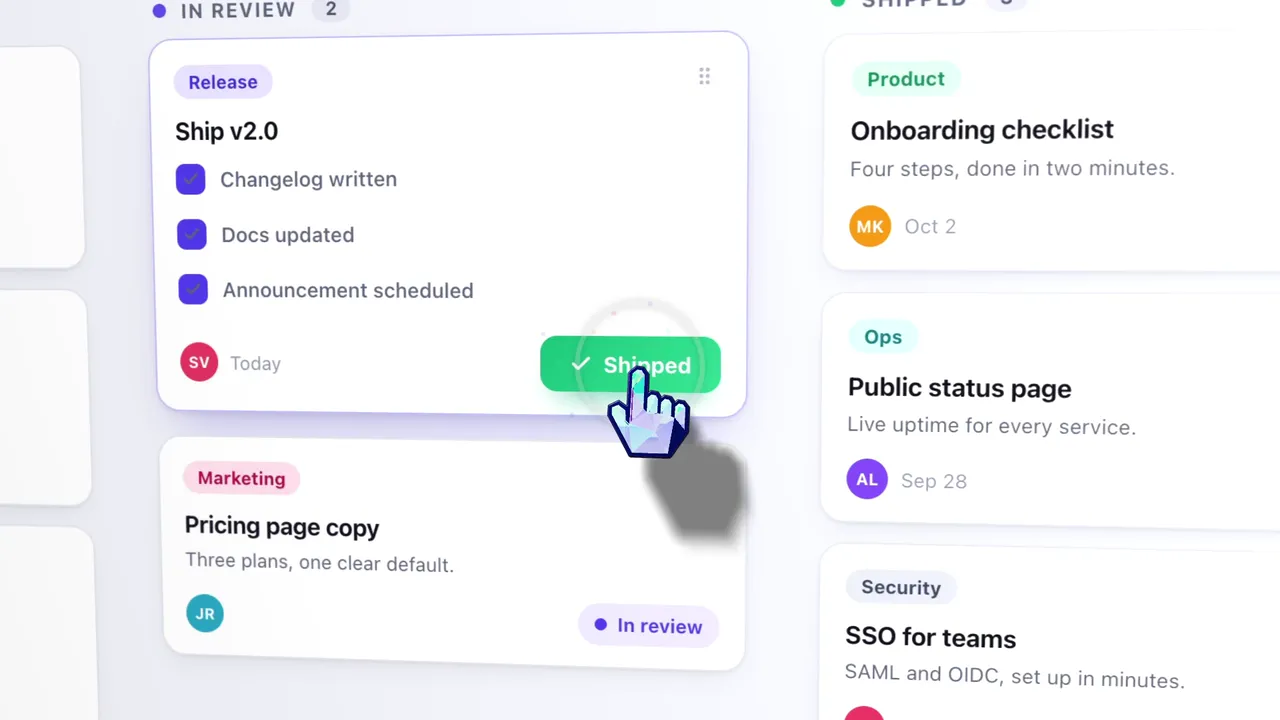
The cursor after the take
The same recorded movement drives the cursor in the export. The Cursor facet shows or hides it and sets its size, smoothing, motion blur, click bounce and click impact. The cursor path is smoothed the same way for the preview and the export, so the preview matches the file.
Click bounce needs recorded clicks. On macOS that takes the Accessibility permission, and on Linux read access to the mouse, through a udev rule or the input group. Recording lists what each platform captures.
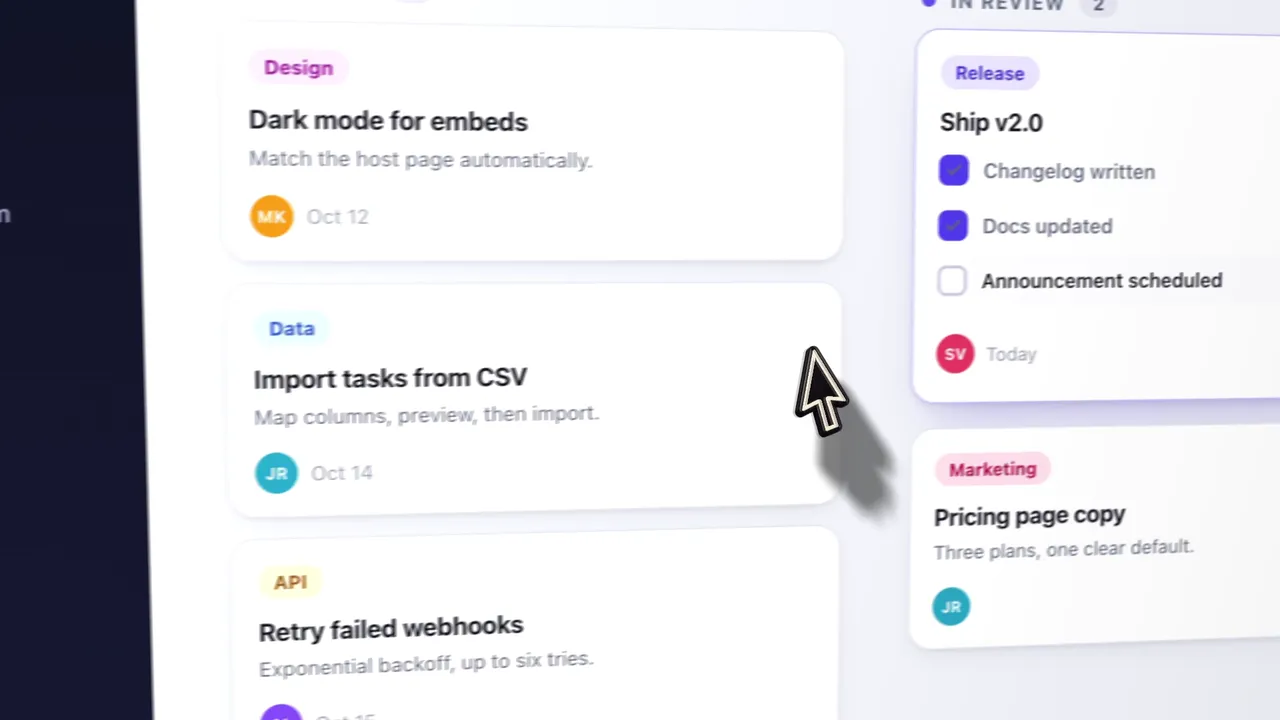
From the command line
The export command of the CLI accepts --auto-zoom. Before rendering, it plans zooms from the recording's clicks, the same way the editor does, and keeps them clear of the project's own. A video with no OpenScreen cursor data gives it nothing to work from.
Other tools that zoom automatically
Automatic zooms are common in this category, and OpenScreen is one of several tools that offer them.
- Screen Studio. Its auto zoom focuses on the places where clicks occurred during the recording.
- Cap. Its Studio Mode generates zoom segments around recorded clicks, from the cursor and click data Cap records. Its docs say imported MP4s do not gain click data during import.
- Camtasia. SmartFocus identifies actions such as scrolling and clicks, then adds pan and zoom animations. It needs a
.trecfile from Camtasia Recorder.
Like OpenScreen, Cap and Camtasia need data their own recorder captured. OpenScreen, Screen Studio and Cap zoom on clicks, and Camtasia's AI picks actions such as scrolling and clicks. For side-by-side comparisons, see the Screen Studio alternative, OpenScreen vs Cap and the Camtasia alternative.
When OpenScreen is not the right tool
- You want automatic zooms on footage from another recorder. Automatic zooms need the cursor file OpenScreen writes. A video from another app has none, and neither does an OpenScreen take recorded in the System cursor mode. Manual zooms still work on both.
- You record an iPhone or iPad. OpenScreen records a display or one window on a Windows, macOS or Linux computer, not a phone or tablet.
Getting started
- Download OpenScreen from the download page. On Windows, the Microsoft Store is the recommended route.
- Follow Installation. On macOS, grant permissions from the window that opens on first launch.
- Record a first take with the quick start, and leave the cursor mode on Editable overlay.
- The take opens in the editor with automatic zooms already placed. Adjust them as described in Editing & timeline.
Building a full demo? The product demo video guide shows how to pace a take for these zooms, and the captions page covers on-device transcription. OpenScreen runs on Windows, macOS and Linux. Or go back to the OpenScreen home page.
Sources
Screen Studio, Cap and Camtasia facts, checked September 2026:
- Screen Studio auto zoom on click positions: screen.studio/guide/auto-zoom
- Cap automatic and manual zooms, and imported MP4s: cap.so/docs/recording/studio-mode
- Camtasia SmartFocus and its
.trecrequirement: techsmith.com/camtasia/features/ai-auto-zoom-and-pan
OpenScreen facts describe version 2.1.0 and link to its documentation above.
Screen Studio, Cap and Camtasia are trademarks of their respective owners. OpenScreen is an independent project and is not affiliated with or endorsed by any of them.