A free, open-source Screen Studio alternative
OpenScreen is a free, MIT-licensed Screen Studio alternative for Windows, macOS and Linux. Like Screen Studio, it zooms in where you click, restyles the cursor after the take, adds backgrounds and on-device captions, and exports MP4 or GIF. Unlike Screen Studio, which runs only on macOS and needs a paid plan to export, it costs nothing and needs no account. Screen Studio is still the better choice if you share recordings as hosted links with comments, or record an iPhone or iPad.
This page is published by the OpenScreen project. The Screen Studio details come from screen.studio and were checked in September 2026. The sources are listed at the end.
At a glance
| OpenScreen | Screen Studio | |
|---|---|---|
| Price | Free, including commercial use | $29/month billed monthly, or $9/month billed yearly (as of September 2026) |
| Export without paying | Yes, and no account is needed | No. Without an active plan, every feature works except exporting video files |
| Source code | Open source, MIT license | Proprietary |
| Platforms | Windows 10 (1903 or later) and 11, x64 and ARM64. macOS 13 or later, Apple Silicon and Intel. Linux, x64 | macOS only, Ventura 13.1 or later (as of September 2026) |
| What it records | A display or one window. Crop afterward in the editor | A display, one window, or a selected area |
| Automatic zooms | Yes, placed on recorded clicks | Yes |
| Captions | On-device Whisper, one model of about 264 MB, downloaded once. Burned into the video | On-device Whisper (Base, Small or Medium), or Apple Speech Recognition on macOS 26 or later. Transcript can be exported as a file |
| Caption translation | 15 languages, through an AI provider you connect | No translation step in its captions guide |
| Multi-clip timeline | Yes | "Multi-clip recordings" listed as planned on its roadmap |
| Text, arrow and image annotations | Yes | "Annotations" listed as paused on its roadmap |
| Export | MP4 (H.264) or GIF, up to 60 fps, no watermark | MP4 or GIF, with frame rate, output size and quality settings |
| Hosted share links | No | Yes, up to 30 minutes per recording (as of September 2026), with timestamped comments |
| iPhone and iPad recording | No | Yes, over USB, with device frames |
| Command-line interface | Yes | None in its guide |
What both apps do
Both apps cover the following. None of it is unique to either one.
- Automatic zooms. Both zoom in on the action. In OpenScreen, Auto-enhance → Automatic zooms places the zooms on the recorded clicks, with no network call and no model. Manual zooms, at any level up to 5×, sit alongside them. More on auto-zoom.
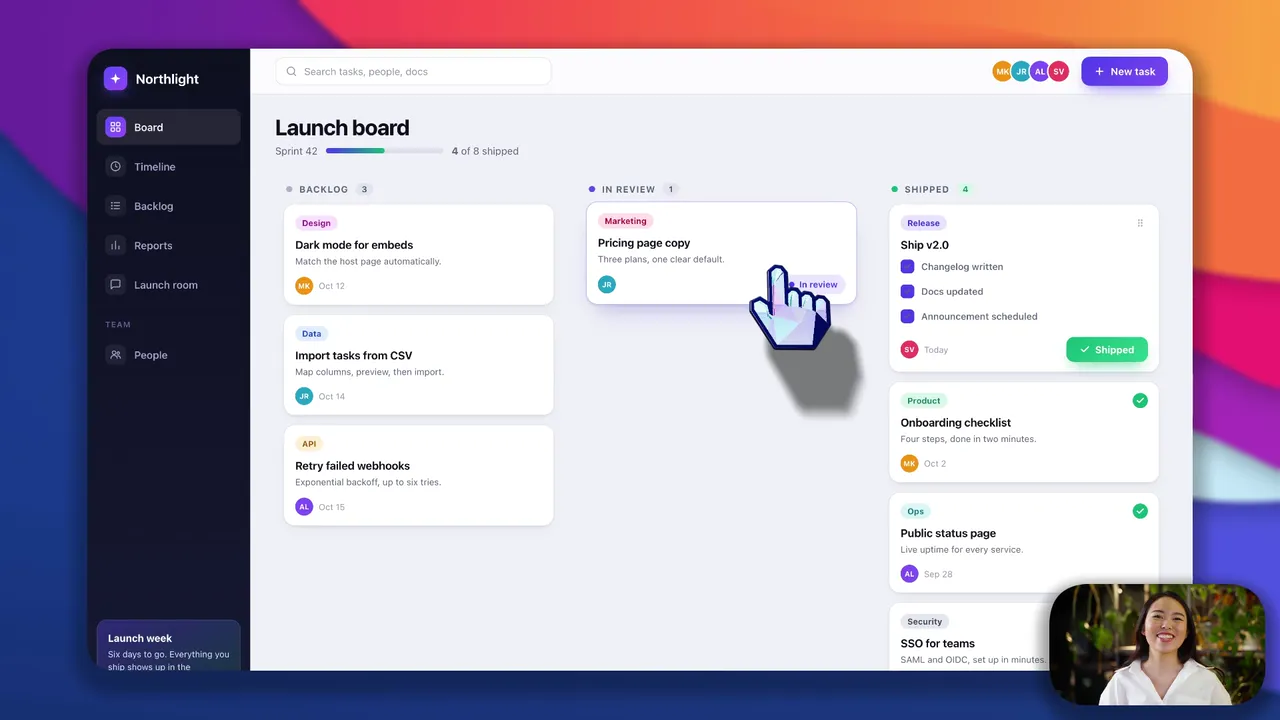
- A cursor you can change afterward. Both let you resize, smooth or hide the cursor after the take and add click effects. By default, OpenScreen records the pointer apart from the video to do this.
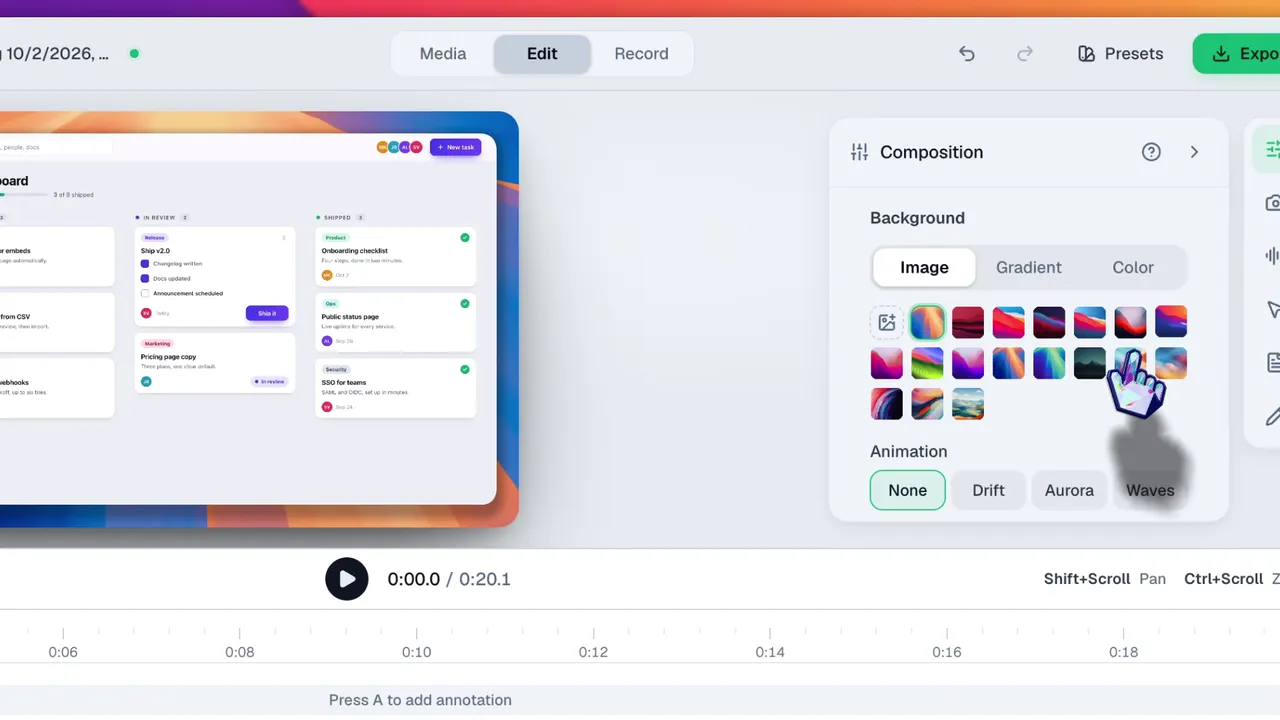
- Backgrounds and framing. Both add a background, padding and a shadow, and output horizontal or vertical video. OpenScreen offers wallpapers, solid colors, gradients or your own image, and aspect ratios including 16:9, 9:16 and 1:1.
- Webcam, microphone and system audio in the same recording.
- Trims, cuts, speed changes and motion blur on a timeline.
- Voice-over and music. Both add a voice-over and background music. Screen Studio ships a music library. OpenScreen records the voice-over on its timeline and imports your own audio files.
- Transcription on your machine. Both run Whisper locally, show the captions over the video, and let you correct the transcript. More on captions.
- Hiding sensitive content. Screen Studio blurs sensitive data with masks. OpenScreen has blur regions, smooth or mosaic.
- Notes while you record. Both have speaker notes. On Windows and macOS, OpenScreen's notes window also has a teleprompter mode.
- Local processing. Screen Studio says it never sends data about your recordings to its servers. OpenScreen has no account and no server of its own. Its only report is an anonymous daily count of active installs, which you can turn off. The FAQ lists the few connections it still makes.
Where OpenScreen differs
Price, license and platforms
- Free, with nothing held back. No plan, no account, no locked export, and commercial use is allowed.
- MIT-licensed source. The code is on GitHub. Screen Studio is proprietary.
- Windows and Linux, not only macOS. Screen Studio's FAQ says there are no near-future plans for a Windows version. OpenScreen ships a Windows installer and a Microsoft Store listing,
.dmgfiles for Apple Silicon and Intel Macs, and an AppImage,.deb,.rpmand.pacmanfor Linux, plus a Nix flake. See the Windows, macOS and Linux pages.
Editing
- Several clips in one project. Import recordings or existing videos (MP4, MOV, MKV and others), reorder them, and set in and out points and a crop for each clip. Screen Studio can start a project from one existing video, and its roadmap lists merging several recordings into one project as planned. See Media library.
- Annotations. Text with six animations, arrows in eight directions, images, and blur regions. Screen Studio's roadmap lists "Annotations", described as visual or textual descriptions of clicks, as paused. See Editing & timeline.
- Webcam background. Remove, blur or replace the camera background without a green screen, in the stable release. Screen Studio lists camera background removal as a beta feature.
Export and automation
- A command-line interface. Scripts, CI and coding agents can drive OpenScreen from its command line. Screen Studio's guide has no command-line entry.
- Optional chat editing with your own key. Connect Claude, OpenAI, Gemini, Mistral, OpenRouter, MiniMax or any OpenAI-compatible endpoint, and describe cuts, zooms, speed changes or annotations in plain language. Each change lands as an ordinary undoable edit. It is off until you connect a provider, and the same provider translates captions into 15 languages. See AI editing.
When Screen Studio is the better choice
- You share by link. Screen Studio generates a hosted link for recordings up to 30 minutes, and viewers can leave comments tied to a timestamp. OpenScreen gives you a file to upload wherever you share.
- You record an iPhone or iPad. Screen Studio records them over USB and adds device frames. OpenScreen records a Windows, macOS or Linux screen.
- You need the transcript as a file. Screen Studio exports it. OpenScreen burns captions into the video.
Getting started
- Download OpenScreen from the download page. On Windows, the Microsoft Store is the recommended route.
- Follow Installation. On macOS, grant permissions from the window that opens on first launch.
- Make a first recording with the quick start. It opens in the editor with automatic zooms already placed.
Comparing other tools as well? See OpenScreen vs Cap, OpenScreen vs OBS Studio, the Camtasia alternative and the Loom alternative, or go back to the OpenScreen home page.
Sources
Screen Studio facts, checked September 2026:
- Pricing, and the FAQ on Windows plans and privacy: screen.studio
- Export requires an active plan: screen.studio/download
- System requirements: screen.studio/guide/system-requirements
- Guide index (no command-line entry): screen.studio/guide
- Area recording: screen.studio/guide/recording-area
- Project from an existing video: screen.studio/guide/creating-project-from-existing-video
- Cursor settings: screen.studio/guide/cursor
- Masks for sensitive data: screen.studio/guide/adding-a-mask-and-highlight
- Roadmap (multi-clip, annotations, camera background removal, click effects, voice-over, speaker notes): screen.studio/roadmap
- Captions, model choice and transcript file: screen.studio/guide/captions
- Export formats: screen.studio/guide/exporting-the-video
- Export settings: screen.studio/guide/explanation-of-export-settings
- Shareable links and their 30-minute limit: screen.studio/guide/shareable-links
- Timestamped comments: screen.studio/guide/shareable-links-comments
- iPhone and iPad recording: screen.studio/guide/recording-iphone-ipad
- Background music: screen.studio/guide/background-music
- Cursor smoothing, zooms, backgrounds, recording sources, and editing tools: screen.studio/llms.txt (dated October 21, 2025)
OpenScreen facts describe version 2.1.0 and link to its documentation above.
Screen Studio is a trademark of its owner. OpenScreen is an independent project and is not affiliated with or endorsed by Screen Studio.